 Minglyph
Give your words a little depth.
Make a name, a short title or a brand word feel tangible. Start with soft clay lettering, then explore felt, paper pulp and other tactile directions in Studio. The exact text stays at the center of the image.
Free public preview · No sign-up required · See plans and downloads
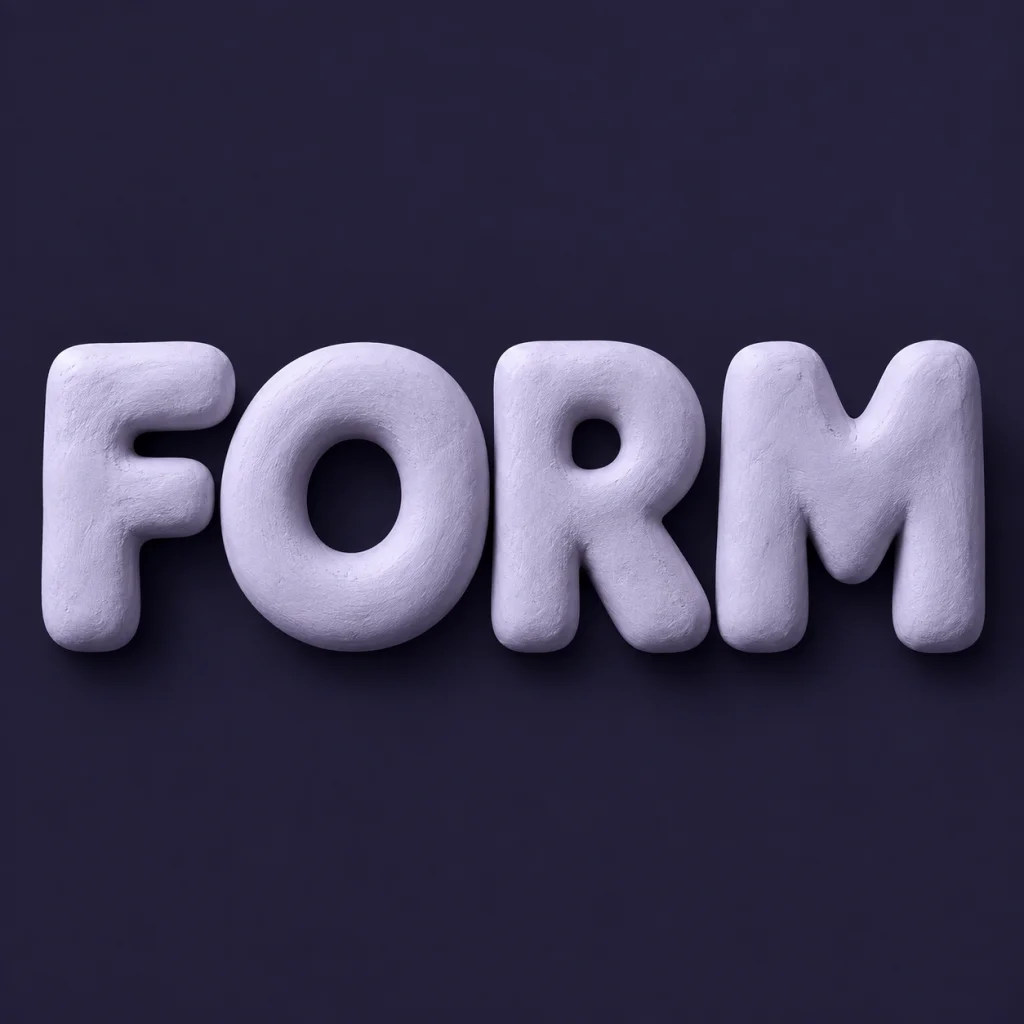
Depth should help the word read.
A convincing 3D text image has more than an extruded edge. Light explains the material, a contact shadow anchors the letters, and open counters keep the word recognizable. A near-frontal view is a useful starting point: you can see the depth without hiding a narrow letter behind the next one.
Choose a material for the feeling.
Clay suits a friendly, solid name. Felt softens a short message. Layered paper gives a title a lighter, handmade quality. Choose one material and one clear palette for the first version, then compare alternatives with the same spelling. This makes the effect of each choice easier to judge.
Use the artwork where texture can be seen.
Sculptural lettering can work as a square cover, a social post or a personal name image. Check it both at full size and as a small thumbnail before choosing a version. Minglyph produces an artwork image; a render that looks three-dimensional is not a downloadable 3D model or an animated scene.
Another way to approach the letters.
Selected studies with their own briefs. Open a direction and replace the text with yours.
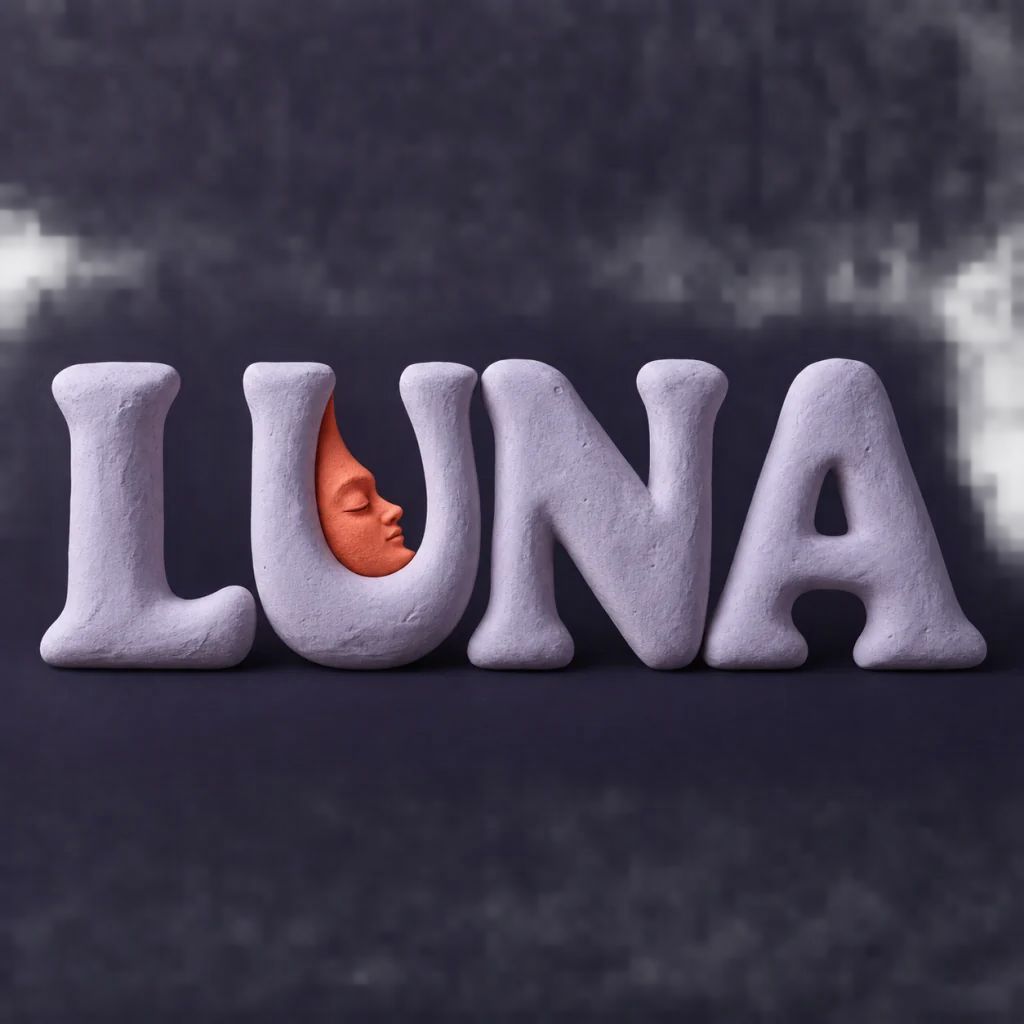
A familiar name with a softer side.
Use this direction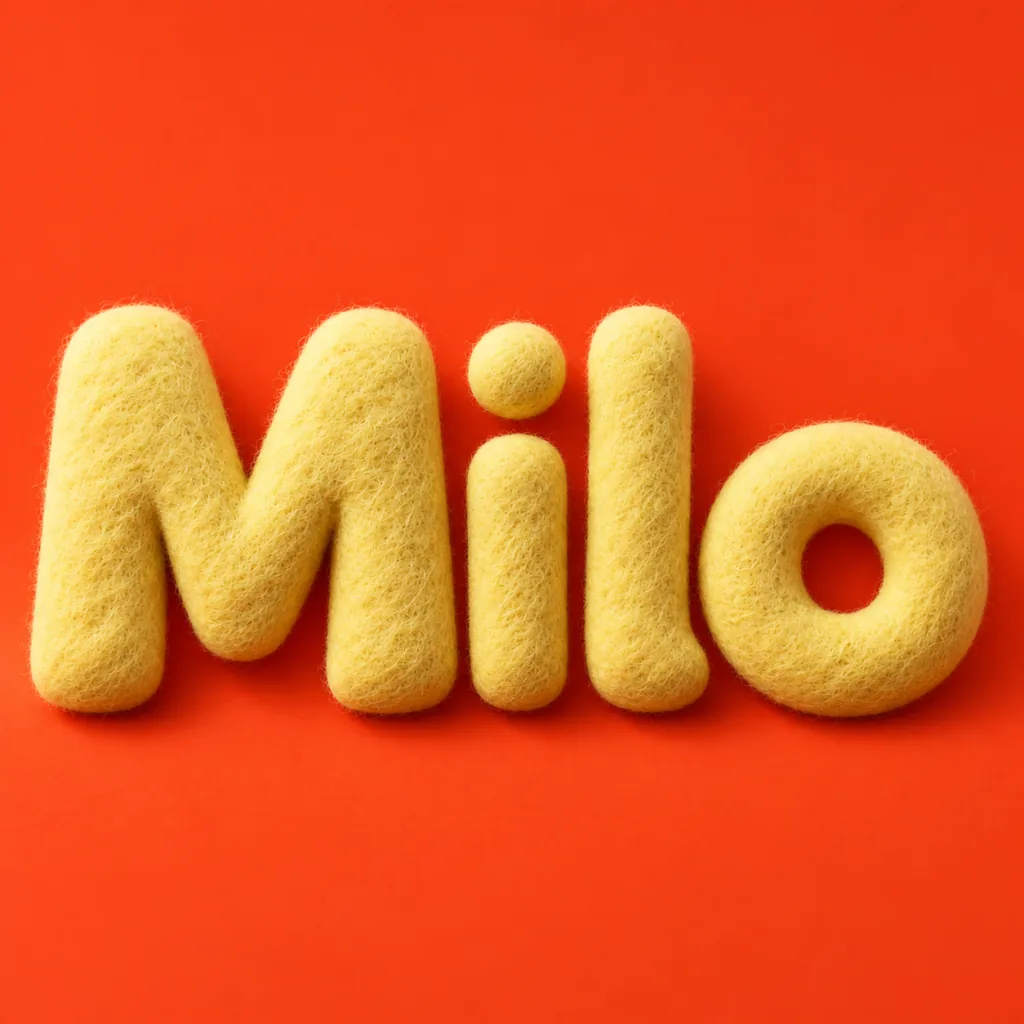
A small name with a warm welcome.
Use this directionFrom your text to a considered image.
- 01
Type the exact text
Keep capitalization, spaces and punctuation as you want them to appear. Short words leave more room for depth.
- 02
Choose a palette
Start with the clay preset below. In Studio, describe a different material in the visual brief if you want another direction.
- 03
Generate and compare
Inspect letter edges, counters and shadows. Keep the most readable result before downloading through the normal Studio flow.
Before you create.
What does this 3D text generator create?
It creates a square AI artwork of your text with sculptural depth and material detail. The result is an image, not a mesh, CAD file or editable 3D scene.
Can I use a name or Chinese characters?
Yes. Enter the exact name, brand term, handle or Unicode text. Inspect every letter or stroke after generation because image details can vary.
Can I change clay to felt or paper?
Yes. Keep the Soft 3D visual style and describe the material in Studio. A focused material brief is easier to compare than a list of competing effects.
Can I make a transparent 3D text image?
This starter creates artwork on a colored background. It does not promise background removal or a transparent export; check the available download and any later editing separately.